


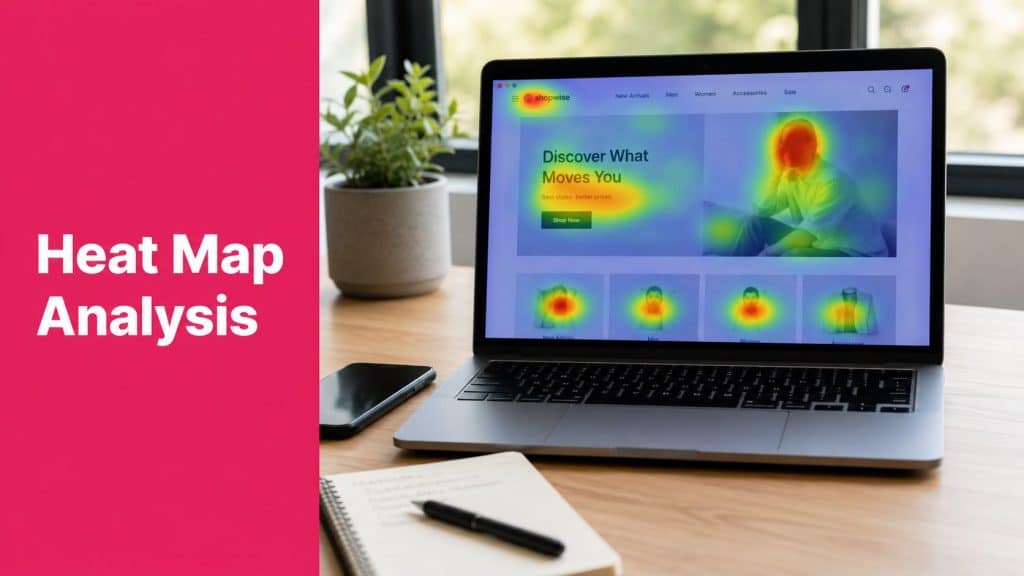
You’re probably looking at a familiar problem right now. Traffic is coming in, product pages are getting views, and carts are filling up. But sales still feel lower than they should.
Standard analytics can tell you where shoppers drop off. They usually can’t tell you why. That’s where heat map analysis becomes useful. It turns behavior into something visible, so you can see where people click, how far they scroll, and which parts of a page they ignore.
For e-commerce teams, that matters because conversion leaks rarely come from one dramatic bug. More often, shoppers miss shipping details, hesitate at the add-to-cart area, tap something that looks clickable but isn’t, or stop reading just before the part that would answer their objection. If you want a broader view of that behavior layer, CartBoss has a solid primer on behavioral analytics for eCommerce.
Why Your eCommerce Store Needs Heat Map Analysis
Heat map analysis is one of the fastest ways to stop guessing about shopper behavior.
Heat maps are a long-established visualization method where color encodes the value of a third variable, and in web analysis they commonly track clicks, scroll depth, and cursor movement, creating a visual overlay that shows which elements engage users and which are ignored, as described in JMP’s overview of heatmaps. That sounds technical, but the practical value is simple. You get a visual story of what customers are doing on the page you’re trying to monetize.
What analytics misses
A funnel report can show that users leave on a product page. It can’t tell you whether they’re getting distracted by a gallery, missing trust signals, or trying to click a badge that doesn’t lead anywhere.
That’s the gap heat maps fill. They help you see friction that’s hiding in plain sight:
- Ignored calls to action that sit in low-attention areas
- Important content below the effective fold where many users never reach it
- Confusing visual elements that attract clicks even though they aren’t interactive
- Checkout distractions that pull attention away from completing the order
Heat maps are strongest when you use them to explain behavior you already know is hurting revenue.
Why this matters for sales
Store owners often treat design issues as branding problems. In practice, many of them are conversion problems. If shoppers don’t notice your shipping policy, size guide, returns message, bundle offer, or payment reassurance, those details might as well not exist.
Heat map analysis helps you catch those misses before they keep draining revenue. It doesn’t replace analytics, testing, or session review. It sharpens them. Instead of changing pages based on internal opinions, you can focus on visible behavior patterns that point to actual friction.
That’s what makes heat maps valuable in e-commerce. They don’t just make pages easier to read. They help you identify where user attention breaks down before it becomes abandonment.
Understanding the Different Types of Heatmaps
Not all heatmaps answer the same question. If you use the wrong one, you’ll end up with interesting visuals and weak decisions.

Click maps
Click maps show where users click on desktop or tap on mobile. They’re the most useful when you want to know whether shoppers interact with the elements that are supposed to move them forward.
On a product page, a click map can help you assess whether visitors focus on product images, variant selectors, size guides, shipping tabs, review summaries, or the add-to-cart button. On a category page, it can reveal whether filters and sorting controls are helping people narrow choices or getting ignored.
A click map is especially valuable when you suspect visual confusion. If users keep clicking on a trust badge, banner, icon, or product image expecting a different action, that’s a sign the interface is sending the wrong signal.
Scroll maps
Scroll maps show how far users move down a page. They’re best for pages where the order of information matters.
Long-form product pages often rely on content sequencing. The headline and gallery create interest. Reviews reduce doubt. Shipping and returns lower purchase anxiety. A sticky add-to-cart bar or repeated CTA catches buyers who are ready later in the journey. A scroll map helps you see whether people are reaching those sections.
This matters most when key conversion content sits lower on the page. If most attention ends before shipping details or proof elements appear, the page may be technically complete but commercially weak.
A cold section doesn’t always mean bad content. Sometimes it just means too few shoppers ever reached it.
Move maps
Move maps track cursor movement and can hint at areas of interest, hesitation, or distraction. They’re useful, but they need the most caution.
Cursor movement doesn’t equal intent. Some users move the mouse while reading. Others don’t. That’s why move maps work best as a directional layer, not as proof on their own.
For e-commerce teams, move maps can still help in specific situations. If shoppers hover around sizing info, financing details, coupon fields, or delivery messaging without taking the next step, that often signals unresolved hesitation. It doesn’t tell you exactly why, but it gives you a place to investigate.
Choosing the right heatmap for your goal
| Heatmap Type | What It Shows | Best For Diagnosing |
|---|---|---|
| Click Map | Where users click or tap on a page | Missed CTAs, misleading design cues, interaction with navigation or product elements |
| Scroll Map | How far users scroll down a page | Hidden content, drop-off before trust signals, long-page content placement |
| Move Map | Where users move their cursor | Hesitation zones, attention clusters, possible distractions |
A quick page-by-page guide
If you’re deciding where to start, keep it simple:
- Product pages: Start with click maps and scroll maps
- Collection pages: Use click maps to review filters, sorting, and product-grid interaction
- Checkout steps: Focus on click behavior first, then validate with deeper behavior review
- Landing pages: Use scroll maps to check whether users see the core offer before dropping off
The main rule is this. Match the map to the business question. Don’t open a move map when the question is whether shoppers ever saw your shipping policy.
How to Set Up Heatmap Tracking on Your eCommerce Site
Good setup determines whether your heat map analysis helps you make money or wastes your time. Most tracking problems start before interpretation. Teams collect data on too many pages, mix devices together, or read patterns before enough sessions have accumulated.

If you’re already reviewing traffic trends, start with your analytics first. CartBoss has a practical guide on how to analyze website traffic that helps identify where to point your heatmap tool instead of tracking every page blindly.
Pick a tool that fits your stack
For most stores, the tool itself isn’t the hard part. Shopify and WooCommerce merchants can choose from established options that install with an app, plugin, or script. What matters more is whether the platform lets you segment behavior cleanly, review session recordings, and isolate pages that matter commercially.
A basic checklist for tool selection:
- Platform fit: Make sure it works cleanly with Shopify or WooCommerce
- Device segmentation: You need separate views for mobile and desktop behavior
- Session replay access: Heatmaps surface patterns. recordings help explain them
- Page-level targeting: You should be able to track specific templates or URLs without clutter
- Testing workflow: It helps if your tool can support validation after changes go live
Track fewer pages, not more
Most stores start too broad. They install a heatmap tool across the whole site, then drown in screenshots of low-value pages.
Start with pages that have both traffic and commercial importance. In practice, that usually means:
- Product detail pages where shoppers decide whether to add to cart
- Cart and checkout steps where friction directly affects revenue
- Landing pages tied to paid campaigns or seasonal offers
- Collection pages if navigation and product discovery seem weak
This approach follows a common CRO pattern. Find the funnel leak first, then inspect the relevant page.
Segment before you analyze
Heatmaps become misleading when you mash all users together.
Industry guidance summarized by MIDA’s heatmap analysis article notes a widely cited threshold of 200 to 300 sessions per page before drawing conclusions, with 500+ sessions recommended for major checkout or redesign decisions. The same guidance warns about common mistakes such as mixing mobile and desktop behavior, comparing relative color scales across pages, and mistaking clicks on decorative elements for real conversion signals.
That leads to a practical setup rule:
- Separate mobile and desktop from the start
- Review major traffic sources independently when possible
- Avoid mixing localized experiences if layouts or messaging differ
- Treat homepage behavior separately from transactional pages
Here’s a useful walkthrough if you want to see how setup usually works in practice:
Use a setup checklist
Before you trust any heat map, confirm the basics:
- Correct page targeting: Are you tracking the page template that is relevant?
- Consistent device views: Did you split mobile and desktop data?
- Enough session volume: Has the page reached a reliable threshold for interpretation?
- Stable page layout: Has the page stayed materially consistent during collection?
- Complementary data available: Can you compare the map against analytics and recordings?
Practical rule: Don’t install a heatmap tool and start hunting for ideas. Start with a revenue problem, then collect the minimum clean data needed to investigate it.
That discipline keeps heat map analysis focused on conversion work instead of becoming another dashboard no one trusts.
Interpreting Heatmap Data to Find Conversion Blockers
A heatmap doesn’t tell you what to change. It shows where to ask better questions.
That distinction matters because visual intensity is easy to overread. A hot area can mean strong engagement, confusion, repeated attempts, or simple page layout bias. A cold area can mean irrelevance, weak placement, or that users never got far enough down the page to see it.

What hot and cold zones actually mean
Start with the page’s job.
On a product page, a hot gallery can be healthy if shoppers are inspecting the item before purchase. On a cart page, a hot coupon field may signal hesitation if users are leaving the main purchase path to hunt for discounts. The same visual pattern means different things on different templates.
The most useful interpretation questions are:
- Does attention match the page’s main conversion goal
- Are users engaging with the intended element or getting pulled sideways
- Is a hot zone helping progression or creating friction
- What important element is getting less attention than expected
Common e-commerce patterns worth catching
Some patterns show up repeatedly in stores.
A classic one is the false bottom on long pages. Shoppers stop scrolling right above key reassurance content such as shipping, returns, subscription terms, or product comparison details. The page has the answer, but the answer sits just beyond the point where many users stop.
Another pattern is non-click confusion. Users click on product badges, trust icons, hero banners, or image overlays that look interactive but aren’t. That usually signals a design expectation mismatch, not curiosity.
A third is checkout frustration. Repeated clicks around payment selection, promo code areas, shipping methods, or progression buttons often indicate friction. If form abandonment is part of the issue, resources like Orbit AI’s form insights can help you think beyond surface interaction and investigate where forms create preventable drop-off.
If a shopper clicks the wrong thing once, that may be noise. If many shoppers do it, the interface is training them to fail.
Why segmentation changes the story
One of the biggest mistakes in heat map analysis is treating aggregated behavior as truth. Guidance from iMotions on analyzing heat maps highlights data quality and interpretation bias, especially across devices. A page can look cold on a mobile checkout step not because the design is weak, but because traffic is split across devices, languages, or traffic sources. Their guidance points to the same practical need many CRO teams run into: segment by device and validate behavior rather than reading the visual in isolation.
For e-commerce stores, mobile is where this gets expensive. Desktop shoppers may move comfortably through tabs, hover states, and wide layouts. Mobile shoppers won’t. If you combine those sessions, you can easily miss a mobile-specific blocker hiding inside a blended map.
A simple interpretation workflow
Use this sequence when reviewing a page:
-
Define the page goal
What should the shopper do here? Add to cart, choose a variant, move to checkout, submit a form. -
Check whether attention aligns with that goal
Are users engaging with the elements that support progression? -
Identify friction signals
Look for ignored CTAs, rage clicks, dead zones, or early scroll drop-off. -
Validate with another source
Compare the heatmap with recordings, analytics, on-page behavior, or user feedback.
If you’re working through a broader optimization process, CartBoss also has a useful eCommerce conversion rate optimization guide that helps connect these page-level signals to funnel performance.
The strongest heatmap reads are never just visual. They connect interaction patterns to page intent, user context, and business impact.
Prioritizing UX Fixes for Maximum Revenue Impact
Most heatmap findings are not worth fixing first.
That’s the part many teams skip. They collect a list of interesting observations, then spend design and development time polishing low-value issues while the main conversion blocker stays in place. The right move is to rank findings by revenue impact and implementation effort.
Start with the funnel, then diagnose the page
Heat maps are not automatically actionable. Siteimprove explicitly recommends using general analytics first to find underperforming pages, then heatmaps to diagnose why they underperform, as explained in Siteimprove’s heatmap analysis glossary. That sequence matters because it keeps your team focused on business problems rather than visual curiosities.
A product page with mild image-gallery confusion may not deserve immediate work if your checkout has a more serious payment-step drop-off. Heat maps can reveal both. Your funnel tells you where the money is leaking fastest.
Use a simple impact-effort grid
You don’t need a complex prioritization model. A plain four-box view works well.
| Impact | Effort | What to do |
|---|---|---|
| High impact | Low effort | Fix first |
| High impact | High effort | Plan and validate carefully |
| Low impact | Low effort | Batch with other updates |
| Low impact | High effort | Usually deprioritize |
Here’s how that plays out in practice:
- High impact, low effort: Move shipping reassurance closer to the add-to-cart area if scroll behavior shows shoppers miss it.
- High impact, high effort: Redesign a mobile checkout step if heatmaps and recordings both show serious interaction friction.
- Low impact, low effort: Clean up a misleading decorative icon that attracts clicks but doesn’t influence conversion much.
- Low impact, high effort: Rebuild a category-page component that looks messy in the heatmap but doesn’t sit near a clear revenue bottleneck.
A working checklist for triage
Before approving a fix, ask:
- Does this issue appear on a high-value page
- Is the affected element close to the conversion action
- Do multiple signals support the same diagnosis
- Is the issue concentrated on mobile, desktop, or a specific segment
- Can we test the change without rebuilding the whole template
The best heatmap insight is usually not the loudest visual pattern. It’s the friction point closest to a meaningful conversion step.
What usually works better than cosmetic cleanup
Strong prioritization tends to favor fixes like:
- Clarifying CTA placement
- Reordering content on long product pages
- Reducing distraction near checkout actions
- Making trust, delivery, and returns information easier to notice
- Removing false affordances that invite useless clicks
If you’re auditing page-level friction more broadly, CartBoss has a practical reference on eCommerce UX best practices that pairs well with heatmap-based review.
The key is restraint. Not every hotspot deserves action. The priority is the fix most likely to change shopper behavior where it affects revenue.
Validating Changes and Integrating Insights with SMS
The job isn’t done when you spot friction and launch a redesign. You need to confirm the change improved the buying journey.
Optimizely’s guidance on heatmaps is useful here. For practical UX and CRO work, heat map analysis should be treated as a hypothesis generator, not a standalone decision tool. Their recommended workflow is to start with a funnel leak in analytics, place heatmaps on the relevant page, validate the pattern, iterate the change, and then re-test, as described in Optimizely’s heatmap glossary.
Validate before you scale
A common mistake is assuming the hottest theory is the winning fix.
If a heatmap suggests shoppers miss your returns policy, you might move that content higher on the page. That’s a sensible hypothesis. But until you compare performance before and after, or run a structured test, you don’t know whether the change improved conversion or merely rearranged attention.
Use a simple validation cycle:
- Identify the funnel leak
- Review the relevant heatmap
- Check recordings or supporting behavior
- Launch one focused change
- Measure the outcome
- Retest if needed
This keeps your team from stacking multiple edits into one release and losing visibility into what was effective.
Use behavioral insight outside the page itself
Heatmap work often uncovers objections that don’t disappear just because someone leaves the site. That’s where retention channels become more useful.
For example, if shoppers repeatedly focus on shipping information, return details, or discount entry points before abandoning, that tells you something about the hesitation driving the exit. Those insights can inform how you follow up through email or SMS. If your retention stack includes both channels, this breakdown of SMS with email marketing strategy is a useful way to think about timing and message roles.

Build a closed-loop process
True value comes from connecting diagnosis, validation, and recovery.
A practical closed-loop approach looks like this:
- Diagnose on-site friction: Use analytics and heatmaps to find the page and behavior pattern
- Validate the cause: Review recordings or adjacent evidence before making assumptions
- Improve the page: Adjust layout, content order, CTA prominence, or reassurance messaging
- Support recovery messaging: Reflect the same objections in your abandoned-cart communication
- Review results and repeat: Keep iterating based on what users do
That last step is what many stores miss. They treat heatmaps as a one-time UX exercise instead of an ongoing revenue workflow. But the best use of heat map analysis isn’t just making a page prettier. It’s learning what blocks purchase intent, fixing what you can on-site, and reinforcing the missing confidence signals in your recovery messaging when a shopper still leaves.
When you use it that way, heatmaps stop being visual diagnostics and start becoming part of a full conversion system.
Cart recovery gets easier when your store understands why shoppers hesitate in the first place. CartBoss helps e-commerce brands turn abandoned carts into recovered revenue with automated SMS campaigns, pre-filled checkout links, dynamic discounts, and multilingual messaging built for Shopify and WooCommerce. If you want a faster way to win back lost sales after fixing on-site friction, CartBoss is worth a look.