


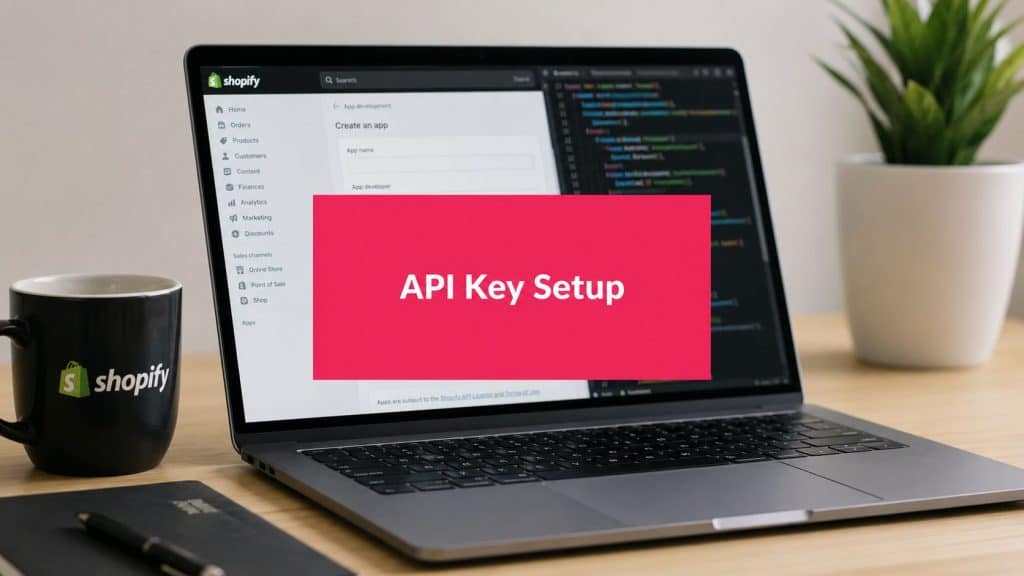
Most guides get the first question wrong. If you’re searching for an api key Shopify setup, you probably don’t need a public API key at all, you need an Admin API access token that can authorize requests to store data and services, while the API key itself is part of the app’s authentication flow. Shopify’s own docs separate these pieces clearly, and that distinction is why so many store owners get stuck after the admin UI changes and newer custom app flows Shopify API documentation.
The practical difference matters. The API key identifies the app in OAuth, the API secret key helps with the handshake and verification, and the Admin API access token is what your server uses for real API calls. If you’re connecting an external tool, syncing orders, managing webhooks, or pulling analytics, the token is usually the credential you need. The confusion persists because people still search for “the key,” even though Shopify has moved toward a more explicit, versioned, permissioned model for API access.

If your goal is cart recovery automation, order sync, or a custom backend integration, start by asking which credential your app flow needs, not where the key lives. For a practical adjacent use case, see CartBoss’s SMS sender API guide, because the same credential confusion shows up in many store-to-tool connections.
Why You Probably Need an Access Token Not an API Key
The mistake I see most often is simple. A store owner asks for a Shopify API key, when the actual need is a credential that can make authenticated requests from a backend service. Shopify’s docs separate app identity, permission scopes, and API access for a reason, and that distinction is where many integrations go sideways after the admin UI changes and newer custom app flows Shopify API documentation.
The credential you need depends on the job
A public API key belongs in an authentication flow. It identifies the app, but it does not grant access to store data on its own. The Admin API access token is different, because it is the credential used for real API requests after installation and scope approval.
Practical rule: if the task runs on a server, such as order syncing, webhook handling, or analytics pulls, you are usually dealing with an access token, not an API key.
That distinction still trips people up because Shopify’s admin interface has changed and a lot of older advice still points to retired private app patterns. Current Shopify guidance centers on custom apps, install flow, and scoped access, so the place you look for credentials is no longer the place many older posts describe. If you need a setup that persists across sessions and handles automated store operations, the token is the credential to focus on Shopify partner guidance on tokens.
How to tell what your integration needs
Use this quick filter:
- OAuth app or app marketplace flow: you need the API key and related OAuth values during the handshake.
- Custom app connected to a store: you usually need the Admin API access token for the actual requests.
- Webhook or backend automation: you need the credential that survives browser sessions, which is the token, plus the secret for verification where applicable.
The search phrase api key Shopify is still popular because the old terminology stuck. The smarter move is to map the task to the right credential before you touch the admin UI. That saves time, avoids permission errors, and keeps you from exposing the wrong secret in the wrong place. If you are coming from a tool integration like the CartBoss SMS sender API guide, the same mistake shows up there too, people look for a key when the backend needs a token.
Creating Your Custom App and Generating Credentials
Shopify’s current setup path is simple once you know where the controls moved. Open the store admin, go to Apps and sales channels → Develop apps, create the app, then define the scopes before you install it. Shopify’s docs show this flow because the app must request permission before it can receive an access token Shopify access token generation docs.

The exact flow that works
- Open Develop apps. Shopify now starts custom app work here, not in a legacy private-app screen.
- Create the app. Name it after the integration purpose, so the next person who opens the admin knows why it exists.
- Configure Admin API scopes. Add only the scopes you need. For example, read_analytics is described by Shopify as “View store metrics,” which shows how specific the permissions can be.
- Install the app. Installation is when Shopify issues the server-side credential.
- Copy the Admin API access token immediately. Shopify documents that the token is shown only once. If you miss it, you will need to reinstall or regenerate it.
Many store owners stop too early and assume the API key is enough. It is not. The API key and client secret support the app authentication flow, but the token is what your backend sends on real API calls. That distinction matters because a public identifier does not replace a server-side credential, and Shopify’s post-2024 interface changes have made the credential screen easier to miss if you are following older guides.
Use the internal checklist in CartBoss’s guide to Shopify apps that increase sales if your app is tied to cart recovery, checkout nudges, or post-purchase automation. Those use cases usually depend on a token that stays valid on the server, not a browser session that disappears when the tab closes.
Capture the token correctly
Do not paste the token into chat, screenshots, or shared docs. Put it into a secure store as soon as you reveal it. If your team misses the first reveal, treat that as a normal operational event, not a failure, and regenerate it through a controlled process.
Understanding the Three Types of Shopify Credentials
Shopify separates credentials for a reason, and that separation keeps the most sensitive values out of places where they do not belong. The API key identifies the app, the API secret key stays private and supports OAuth plus webhook verification, and the Admin API access token is the credential your backend uses for real API requests.
What each credential does
| Credential Type | Purpose | When to Use | Security Level |
|---|---|---|---|
| API key | Identifies the app in auth flows | OAuth initiation, app identity | Public-facing, low risk if exposed |
| API secret key | Verifies the app and supports secure handshakes | OAuth callbacks, webhook verification | High sensitivity |
| Admin API access token | Authenticates API requests to store resources | Server-to-server calls, sync jobs, automation | High sensitivity |
The mistake is treating them as interchangeable. They are not. An API key will not authenticate a request that expects a token, and exposing the secret weakens the trust boundary of the app itself. If you are sorting out where each value belongs in your integration, the internal explainer on authentication protocols at CartBoss is a useful companion because it separates browser-facing identifiers from server-side credentials.
Concrete use cases by credential
- OAuth login flow: needs the API key and secret to move through the handshake.
- Webhook verification: depends on the API secret key, because the app must confirm the payload really came from Shopify.
- Order and inventory sync: uses the Admin API access token, because that is what authorizes direct reads and writes.
A server-side integration should rarely need the public key after setup. That is why experienced developers usually keep the API key in app metadata and reserve the token for actual calls. When a request fails, check whether the wrong credential type was used before assuming Shopify dropped the value or the app setup went wrong.
Securing Your API Credentials and Rotation Best Practices
Shopify only reveals sensitive values once for a reason. Once a token has been shown in the admin flow, treat it as live production data, not a note to save later. Store the Admin API access token in environment variables or a secret manager, then restrict access to the people and systems that need it.

What good handling looks like
- Environment variables: keep local development credentials out of source control.
- Secret manager: store production values in a managed vault instead of a spreadsheet.
- Rotation discipline: regenerate credentials after team changes, suspicious access, or a deployment mistake.
- Access logs: review who touched the credential and when.
- Revocation path: know how to cut off a token fast if you suspect compromise.
If your team already follows strong site security practices, apply the same discipline here. NiKa Consulting Group SSL best practices are a useful reference because credential safety sits inside the same broader habit of protecting customer data and transport security.
Dev and production should not share the same secret
Use one credential set for testing and another for live store operations. That keeps a staging mistake from interrupting a real customer flow. It also makes it easier to identify which environment caused a webhook failure or permission error.
For implementation details around token handling and encryption-minded storage patterns, the internal article on encryption standards at CartBoss fits this workflow. The point is simple. The fewer places a credential exists, the smaller the blast radius when something goes wrong.
If you suspect a token has leaked, revoke it first, then issue a replacement and update every service that depends on it. Do not keep a compromised credential alive while you investigate.
Admin API vs Storefront API Choosing the Right Access
The Admin API and Storefront API do different jobs, and mixing them up creates avoidable problems. Use the Admin API for backend work like order management, inventory updates, analytics, and automation. Use the Storefront API for customer-facing features such as product display, cart handling, and custom storefront logic.

Pick the API by the direction of data flow
If your code runs behind the scenes and changes store data, use the Admin API. If your code lives in the storefront and helps customers browse products or build a cart, use the Storefront API. The authentication model follows that split, so the same credential setup does not fit both.
CartBoss is one example of a tool that uses Shopify-side access for cart recovery automation, which is why backend credential handling matters more than surface-level UI access. That kind of integration depends on the right token, the right scope, and a server-side request pattern that keeps private access off the client.
A quick decision guide
- Backend sync or reporting: Admin API.
- Customer-facing catalog or cart UI: Storefront API.
- Private app logic that updates store resources: Admin API with scoped token access.
- Embedded storefront experience: Storefront API with the right public-facing setup.
Shopify’s current model is more explicit than older setups that treated one credential as a universal pass. That improves security, but it also means developers have to think carefully about intent, scope, and where the code runs. If customers can inspect the code, it should not hold the same secret that powers backend writes.
Troubleshooting Common API Authentication Issues
Most authentication failures come down to one of four things. The token wasn’t copied before Shopify hid it, the app doesn’t have the right scopes, the request is using the wrong API version, or the integration is hitting pagination limits and misreading the result set. Shopify’s Admin API docs show structured pagination, and the orders endpoint returns up to 250 records per page, which matters when you think the API “dropped” data but really just paginated it Shopify API documentation.
Fast checks that save time
- Token not visible after install: reinstall or regenerate, because Shopify shows the token only once.
- Scope error: reopen the app, verify the requested permissions, and reinstall after changing them.
- Version mismatch: confirm the integration points at the correct versioned Admin API path, such as the rolling 2026-01 model shown in the docs.
- Missing records: inspect pagination logic before blaming the credential.
If the integration fails, check server logs first. You want the exact request path, the credential type being used, and the response code. That tells you whether the problem is authorization, scope, or pagination. For message-driven workflows that depend on Shopify events, the internal guide on sending SMS from Shopify integrations is a practical reference point for how backend auth mistakes can break downstream automation.
A clean credential setup doesn’t just prevent errors, it makes debugging shorter because each failure points to one layer instead of three.
When the fix is not obvious, rebuild from the simplest path. Create the app, assign one scope, install it again, copy the token once, and test a single request. That process exposes whether the issue sits in auth, API versioning, or your own request handling.
If you want a Shopify integration that keeps abandoned-cart automation, backend requests, and store-side permissions aligned, CartBoss can help you connect the moving parts without guessing which credential belongs where. Visit CartBoss to see how its Shopify SMS recovery flow fits into a safer token-based setup.