


A customer adds two products, changes a quantity, and applies a coupon. Then the cart page shows stale totals, or the checkout button leads somewhere unexpected. If that sounds familiar, the fix may not be a new plugin. It may be the page that connects the cart shoppers see with the WooCommerce session behind it.
The WooCommerce shopping cart shortcode, [woocommerce_cart], still gives many stores a dependable way to render that workflow. But placing it is only the starting point. You also need the right page assignment, compatible extensions, working cart updates, and a migration plan that accounts for accessibility and recovery tracking.
Table of Contents
- Why the Cart Page Deserves Real Attention
- Setting Up the Shortcode on a WordPress Page
- Practical Examples with Cart Add-ons and Templates
- Shortcode vs Cart Block and When to Switch
- Troubleshooting Cart Shortcode Errors and Accessibility
- Cart Page Playbook and SMS Recovery Considerations
Why the Cart Page Deserves Real Attention
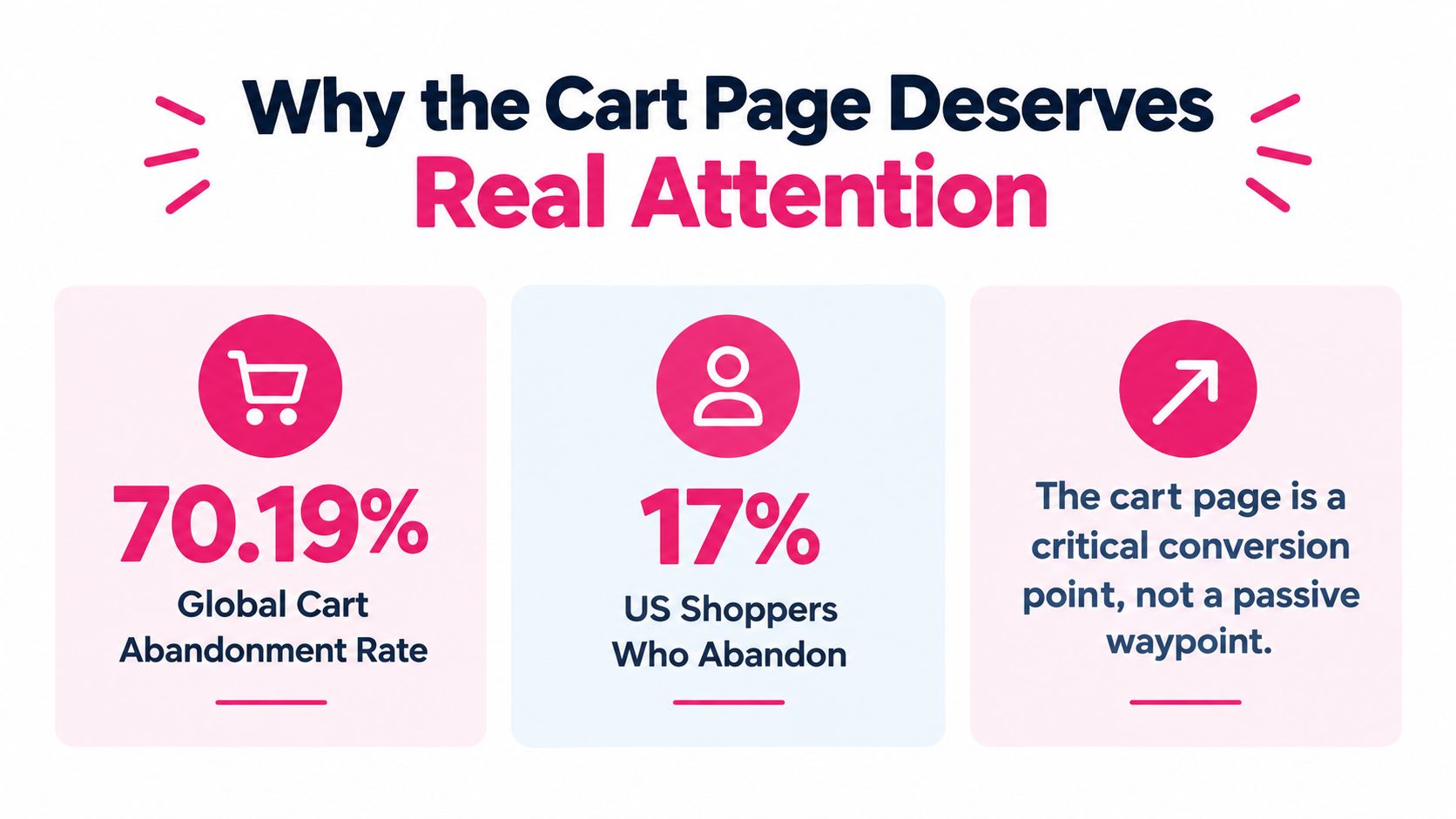
Shoppers don’t experience the cart as a passive stop. They use it to review products, adjust quantities, apply coupons, understand totals, and decide whether to continue. Baymard Institute reports a 70.19% global average cart-abandonment rate, based on 13 years of tracking, and says 17% of US online shoppers had abandoned an order during the previous quarter because checkout was too long or complicated. Those figures make the cart a conversion checkpoint, not just an order summary. Baymard’s checkout usability research offers useful context for evaluating friction across the cart-to-checkout journey.
WooCommerce’s [woocommerce_cart] shortcode renders cart contents, the coupon interface, and other basic cart information. It connects the visible page to the customer’s cart session, so quantities, totals, and the path to checkout work as part of a real store workflow. The shortcode isn’t a static label, and it doesn’t have documented settings you can add inside its brackets to change its output.
That structure matters when a theme, page builder, or optimization plugin interferes with the cart page. A broken update or hidden coupon error can create friction that a later reminder can’t fix. For broader guidance on page layout and usability, Bruce and Eddy’s overview of ecommerce best practices for small businesses is a useful companion.
Treat the page as a working part of checkout: verify cart behavior, make shipping and coupon information easy to understand, and keep distractions away from the next step. For other common reasons shoppers leave before ordering, see why customers abandon their carts.
Setting Up the Shortcode on a WordPress Page
Start with a dedicated WordPress page. In the block editor, add a Shortcode block and enter [woocommerce_cart]. In the Classic Editor, paste the shortcode into the page content. Keep it as plain shortcode text rather than styling or wrapping it in a builder element that may filter page content.
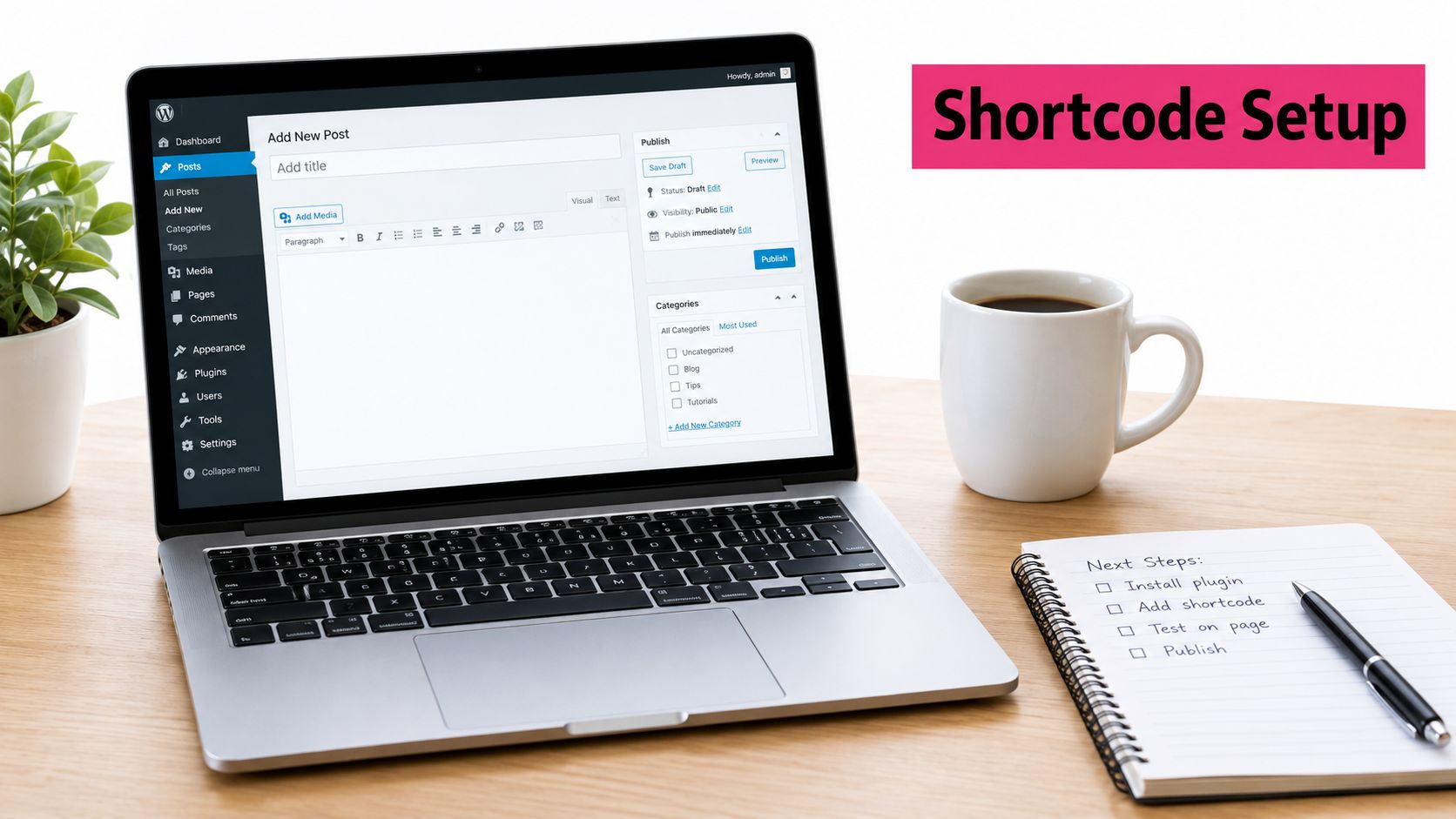
The page must also be selected as the cart page in WooCommerce settings. If the shortcode exists on a page but WooCommerce points to another page, cart links and related flows may not resolve as you expect.
Set up and verify the cart page
- Create the page. Add a WordPress page called “Cart.”
- Insert the shortcode. Use a Shortcode block in the block editor, or enter
[woocommerce_cart]in the Classic Editor. - Publish the page. Preview it on the front end and confirm the cart interface renders instead of showing bracketed text.
- Assign the page. Open WooCommerce’s page settings and choose the new page as the Cart page.
- Test the full journey. Add a product, change its quantity, apply a coupon if available, and proceed toward checkout.
For example, a shop owner creates “Cart,” adds the shortcode, publishes the page, and selects it in WooCommerce settings. That final assignment is easy to miss, but it’s what tells WooCommerce which page should serve as the cart endpoint.
If the page renders incorrectly, check whether a page builder or custom content filter is stripping shortcodes. Also check for a conflicting page or slug and refresh permalinks if routes don’t behave after changing page assignments. Don’t add undocumented attributes to [woocommerce_cart]; use WooCommerce hooks, templates, or a compatible extension for customization.
A short walkthrough can help you identify the relevant editor controls before making changes:
Practical Examples with Cart Add-ons and Templates
The default cart is a functional starting point, not a reason to crowd the page with promotions. Add-ons can be useful when they’re relevant to what’s already in the cart and don’t obscure the checkout path.
WooCommerce cart add-ons can be configured with a title, a maximum number of recommendations, default products, and category or product matches. If several category rules apply, you can prioritize which match to show. After setting those rules, place an add-on shortcode on the cart page. For example:
[display-addons length=5 mode=loop]
Another supported placement is:
[display-addons add_to_cart=1]
The first example requests a limited recommendation display. Configure the actual add-on rules in the extension, then check that the products shown complement the cart rather than compete with it. WooCommerce’s cart add-ons documentation covers the available configuration options.
Keep template changes separate from core files
If the layout needs more control than an add-on provides, a developer can override the cart template through a child theme. That approach can change presentation while keeping edits out of WooCommerce core files, which could be overwritten by an update. It does require maintenance: when WooCommerce changes the original template, the override may need review.
Before deploying either change, test with the store’s actual shipping, tax, coupon, and payment setup. Check that cart totals recalculate, add-on products can be added and removed, and the checkout button still advances correctly. A page that looks polished in an editor preview hasn’t passed a functional test.
If you’re also reviewing the checkout experience, this guide to WooCommerce checkout plugins for boosting conversions can help you assess adjacent parts of the purchase flow.
Shortcode vs Cart Block and When to Switch
A newer interface isn’t automatically a safer one for every store. WooCommerce 8.3 made Cart and Checkout blocks the default for new stores, while existing stores keep their current implementation. Classic shortcodes remain supported for backward compatibility, and WooCommerce notes that shortcode pages can still offer better extension compatibility in some cases. WooCommerce’s Cart and Checkout customization documentation is the place to check current guidance before changing a live page.
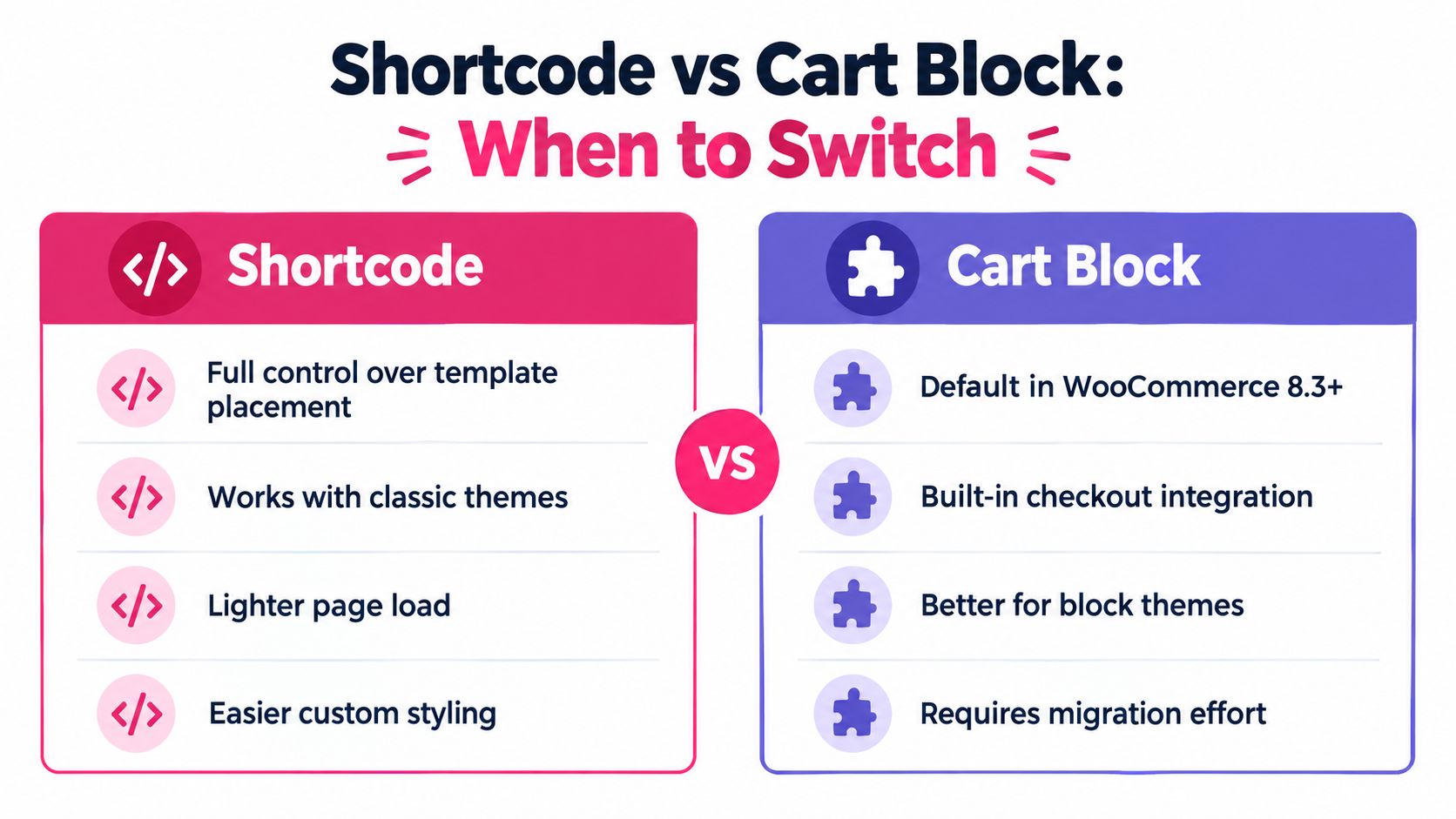
Decide based on compatibility, not novelty. A store with custom PHP around cart hooks, an extension-dependent coupon flow, or a theme built for the classic cart may have more to lose from an untested switch. A newer store using a block-based theme and extensions confirmed to support Cart blocks may benefit from adopting the block workflow.
Audit before migrating
- Extensions: Confirm that payment, shipping, coupon, and cart extensions support the target cart implementation.
- Theme behavior: Identify custom cart hooks, template overrides, and styling that could change.
- Customer flows: Test the mini-cart, add-to-cart redirects, coupon handling, and checkout progression.
- Tracking: Verify that cart contents, customer identity capture, and recovery links still work after the change.
Test the block and shortcode on a staging copy with the production theme and extensions. Compare visible behavior and cart events across the same journey, from adding a product through checkout. If the block introduces a regression, restore the shortcode page and reselect it as the cart page in WooCommerce settings. Keep a record of the prior page content and settings so rollback doesn’t become guesswork.
For a broader view of reducing friction across the purchase path, see this guide to eCommerce checkout optimization. The right implementation is the one your store can support and test reliably.
Troubleshooting Cart Shortcode Errors and Accessibility
A cart can look correct and still fail a shopper who relies on assistive technology. A WooCommerce issue documented that a shortcode cart could save a changed quantity without announcing success to screen-reader users. That’s a reminder to test the update itself, not just whether the number on screen changes. The reported cart accessibility issue specifically identifies the shortcode cart and Cart Classic Block.
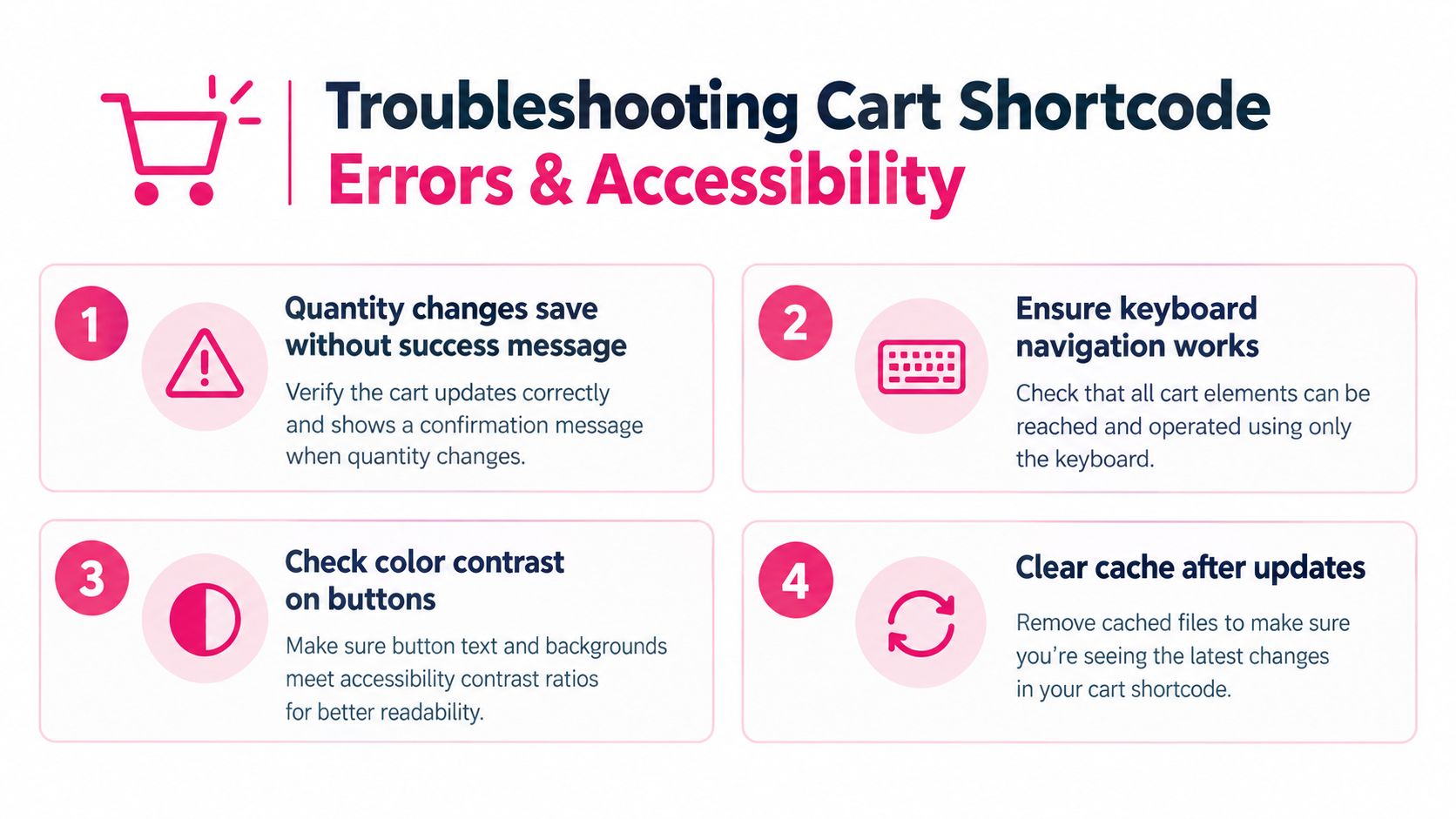
Test with a keyboard and a screen reader. Move to quantity controls and buttons without a mouse, change a quantity, apply a coupon, and trigger an invalid or unavailable action. Confirm that the focus remains sensible and that success messages, updated totals, and errors are announced. A visual check alone won’t tell you whether those state changes are communicated.
Match the symptom to the fix
- Wrong cart page selected: Customers land on the wrong page or see an unexpected cart. Recheck WooCommerce page settings and select the page that contains the shortcode.
- Page builder strips content: The shortcode appears as text or the cart doesn’t render. Test the page in a standard WordPress content area or use the builder’s compatible shortcode element.
- Block and shortcode mixed together: The page shows duplicate or inconsistent cart interfaces. Use one cart implementation on the page, then test again.
- Cart scripts disrupted: Totals remain stale or AJAX updates fail. Temporarily disable script deferral or combination for WooCommerce cart scripts, then inspect browser errors and PHP logs before adjusting optimization settings.
Run the same test after theme, plugin, or caching changes. For more ideas on usability checks, see these eCommerce UX best practices. Accessibility belongs in cart QA because a shopper can’t complete an order if an update or error is invisible to their assistive technology.
Cart Page Playbook and SMS Recovery Considerations
Cart recovery depends on a reliable record of what the shopper added and whether the cart changed. After a template edit, add-on placement, or shortcode-to-block migration, verify that cart events, customer identification, and recovery links still correspond to the shopper’s current cart. Otherwise, a reminder could send someone back to an outdated state.
Marketing consent needs its own check. UK guidance based on PECR and GDPR says businesses generally need prior, active consent before sending marketing SMS or email. The opt-in should name the sender and marketing purpose, use a positive action, be recorded, and offer a straightforward way to opt out. Don’t assume that an essential order update gives permission to send promotional messages. See the guidance on marketing and advertising under PECR and GDPR. For additional cart-recovery context, read this guide to recovering WooCommerce carts via SMS.
For a busy store owner, a compact cart-page audit is practical:
- Render: Confirm the correct cart page displays the shortcode or intended block.
- Update: Change quantity and verify totals, coupons, shipping, and taxes recalculate.
- Test: Complete a keyboard-only pass and check that screen-reader announcements make sense.
- Recover: Confirm cart tracking and recovery links reflect the latest cart state.
- Consent: Check that marketing opt-in is separate, explicit, recorded, and easy to withdraw.
For more ways to reduce friction across the purchase journey, checkout optimization for eCommerce offers additional practical context. Make this audit part of release testing, not a task you remember only after a customer reports a broken cart.
CartBoss offers automated SMS cart-recovery campaigns and a WooCommerce plugin, so you can reconnect a reliable cart page with a tested reminder workflow. Visit CartBoss to see how it can help bring consenting shoppers back to complete their orders.